

Document Vault Help
Learn how to upload and manage files in your Document Vault. Find help with which file types are accepted, size limits, and troubleshooting upload issues.
Last reviewed
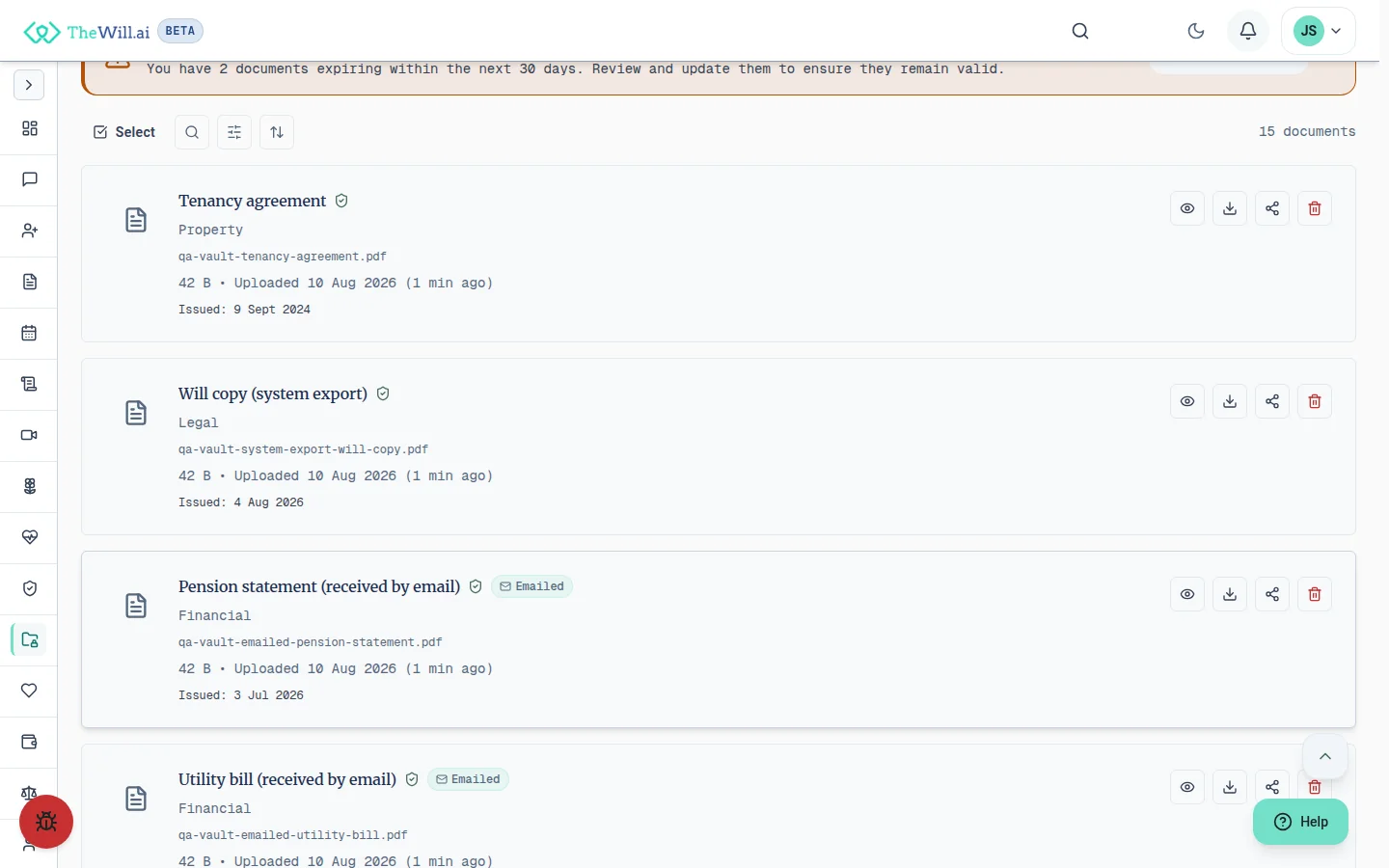
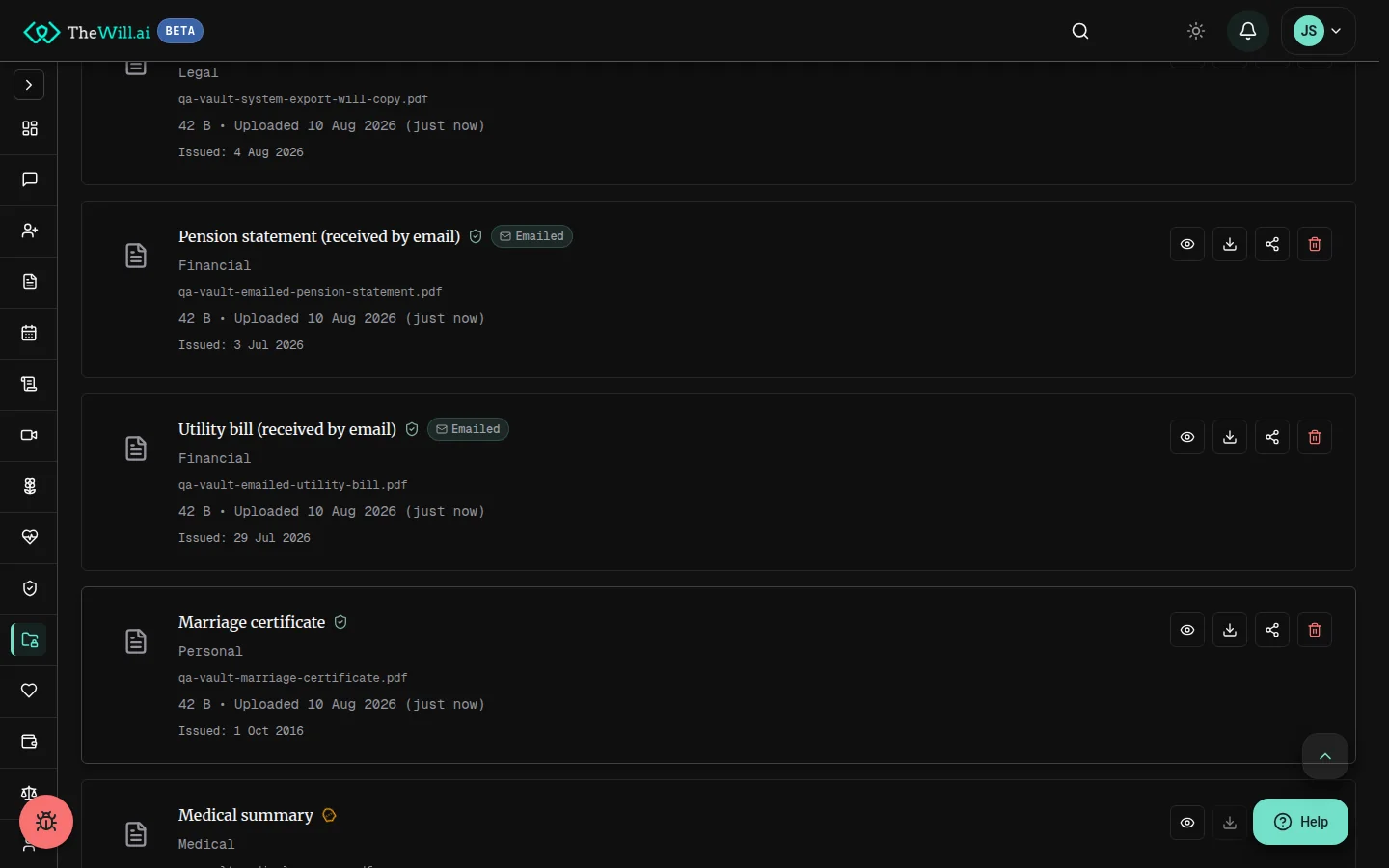
Personal and firm vaults
Your vault is not one undivided list. Each document is stored in a workspace: your own personal vault, or the vault of an organisation you work for. The name above the page (the workspace shown in the breadcrumb, just below the site navigation) tells you which workspace you are currently looking at.
Where is the paper original?
The vault holds your scans. To record where the paper original is kept, and who should be told, add it to your Belongings Map; the document page then shows where the original is.
What each workspace holds
- Your personal vault: documents you store for yourself. Private to you unless you share a document.
- An organisation’s vault: documents stored for the firm or charity, rather than for any one person there.
What changes when you join an organisation
If you have been practising on your own and you join or form an organisation, documents you add as a professional from then on are stored for that organisation rather than in a vault of your own. We tell you when this happens and ask you to confirm you have read it. It is not something you should have to discover from the breadcrumb changing name.
This does not make your documents visible to everyone at the organisation. Access to an organisation’s vault is granted person by person, so a colleague can open a document only where they have been given access to that vault. Your personal vault is separate throughout and is not affected.
Managing who can see what
Administrators of an organisation manage access to its vault from Vault access, where you can see who currently holds access, grant it to a colleague, limit it to particular client matters, and withdraw it again.
Not sure which vault you are in? Check the workspace name in the breadcrumb above the page. When you upload, the upload form also names the workspace the file will be stored in.
Accepted Files
The Document Vault accepts any file type except programs and installers. PDFs, photographs and scans, word processor and spreadsheet files, plain text, archives and media files can all be stored, up to the size limit below.
What we do not accept
Programs, scripts and installers are refused, whatever they are named. That covers Windows, macOS, Linux and Android program and installer files, and shell or scripting files, for example:
- Programs and libraries:
.exe,.com,.scr,.dll,.so,.dylib,.app,.bin,.out,.run - Installers and packages:
.msi,.msp,.dmg,.pkg,.deb,.rpm,.apk,.jar - Scripts:
.bat,.cmd,.ps1,.vbs,.js,.wsf,.hta,.sh,.bash
Renaming does not help: we check what a file actually contains, not just its extension, so a program renamed to .pdf is still refused. Storing a program in the vault is also prohibited by our Acceptable Use Policy.
Previews: PDFs and images (JPEG, PNG and AVIF) show a preview thumbnail in your vault. Other file types are stored exactly as you uploaded them and show a generic file icon instead, and you can always download the original.
File Size Limits
To ensure optimal performance and security, file uploads have the following size restrictions:
Maximum File Size
- Individual files: a fixed size per file
- Total vault storage: Depends on your plan (Free: 1 GB, Silver: 10 GB, Gold: 25 GB, Platinum: 100 GB, VIP: Unlimited). See Storage Estimation Guide for details.
Want to estimate how much storage you’ll need? Use our Storage Estimation Guide with an interactive calculator for personal and professional use.
Reducing File Size
- For PDFs: Use PDF compression tools (Adobe Acrobat, online compressors) to reduce file size while maintaining quality
- For images: Resize images to reasonable dimensions (e.g. 1920x1080 for documents) or compress using image optimisation tools
- For scanned documents: Reduce scanner DPI to 150-300 DPI for text documents (300-600 DPI for images)
- Remove unnecessary pages: Extract only relevant pages from large multi-page documents
Tip: Most will-related documents (death certificates, property deeds, etc.) are well under that limit when scanned at appropriate resolution.
Troubleshooting Upload Issues
"File Too Large" Error
- Check the file size - it must be under the per-file limit
- Compress the file using the methods described in the File Size Limits section
- For multi-page documents, split into smaller files if necessary
"Unsupported File Type" Error
- Check that the file is not a program, script or installer. Those are the only files we refuse, and the full list is in Accepted Files
- If it is a program, store it somewhere else. Renaming it will not get it in, because we check what the file actually contains
- If it is not a program, check that the file is not empty or truncated, then re-export it from the application that created it and try again
"Upload Failed" or Network Errors
- Check your internet connection - Ensure you have a stable connection
- Try again - Temporary network issues may resolve on retry
- Use a different network - Switch from WiFi to mobile data or vice versa
- Clear browser cache - Go to browser settings and clear cached files
- Try a different browser - Test with Chrome, Firefox, Safari, or Edge
- Disable VPN - Some VPN configurations can interfere with uploads
"File Corrupted" or Won’t Open
- Verify the original file opens correctly on your device before uploading
- Try re-saving the file in the same format (e.g. open PDF and "Save As" a new PDF)
- Create a new copy from the source (e.g. re-scan the document, re-export from original application)
- Ensure the file isn’t password-protected or encrypted
Security note: For your protection, uploads are scanned for malware. If a file is rejected for security reasons, verify the file source and try re-creating it from a trusted application.
Browser-Specific Upload Issues
Safari (iOS/macOS)
- Ensure Cross-Site Tracking Prevention isn’t blocking uploads: Settings → Safari → uncheck "Prevent Cross-Site Tracking" temporarily
- For iPhone/iPad: Use Safari’s "Request Desktop Website" option if mobile upload fails
- Update to the latest version of Safari for best compatibility
Chrome/Edge
- Check browser permissions: Settings → Privacy and Security → Site Settings → ensure Orchard72.com has file access
- Disable ad blockers or browser extensions temporarily to test
- Try uploading in an Incognito/Private window to rule out extension conflicts
Firefox
- Check Enhanced Tracking Protection: Click shield icon in address bar → ensure it’s not blocking uploads
- Clear Firefox cache: Settings → Privacy & Security → Clear Data → Cached Web Content
Still having issues?
- Update your browser to the latest version
- Restart your browser completely (close all windows)
- Restart your device
- Contact support if problems persist
Best Practices for Document Storage
Document Organisation
- Use descriptive names: Name files clearly (e.g. "Property-Deed-123-Main-St.pdf" instead of "scan001.pdf")
- Add relationship context: Specify which beneficiary or executor the document relates to
- Include dates: Add relevant dates to filenames for version tracking (e.g. "Will-Final-2024-01-15.pdf")
Document Quality
- Scan legibly: Ensure text is clear and readable at 150-300 DPI
- Use colour when needed: For documents with important colour coding or stamps
- Check orientation: Rotate pages to correct orientation before uploading
- Remove blank pages: Delete unnecessary blank pages to reduce file size
Security & Privacy
- Redact sensitive data: Black out account numbers, tax IDs, or other highly sensitive information not needed for will execution
- Keep originals safe: Store original physical documents in a secure location - vault copies are for reference
- Keeping it up to date: Periodically revisit and update documents as life circumstances change
What to upload: Beneficiary identification, property deeds, account statements, insurance policies, digital asset credentials, Advance Decisions, and any documents your executor may need to access.
Password-protected uploads and source documents
What happens when I upload a password-protected PDF?
We detect the password protection before we save the file, and ask you to type in the password in a secure prompt. When you submit the password we unlock the file on our servers, save an unlocked copy in your vault, and throw the password away immediately. The original password is never saved.
Why do you store an unlocked copy?
So that we can generate previews, extract data (for example, transactions on a broker statement), and let you share the document with others without them needing the password. If you would rather not have an unlocked copy stored, don’t tick the consent box. You can still use Orchard72 for unprotected files as normal.
Is my password safe?
Yes:
- It travels to our servers over an encrypted (HTTPS) connection.
- It is held only briefly in our servers’ memory while the document is opened, then discarded.
- It is never written to logs, databases, or backups.
- Document uploads are rate-limited per account, so scripted guessing through repeated attempts is throttled.
Can I delete the unlocked copy later?
Yes. Delete the document from your vault and we remove the unlocked copy from our live storage straight away and from our backups within 30 days. Anything we have extracted from the document is also deleted.
Can I share a password-protected document with my family or solicitor?
Yes. When you share it through our share-link flow, they will receive the unlocked version, so they don’t need the password.
Where do the numbers in my broker / bank import come from?
Every figure you see in Orchard72 that was read from a document you uploaded has a "View source" link next to it. Click it and we will show you the exact page of the exact document we read the figure from, along with the method we used (an optical character recognition engine or an AI model) and a confidence score where we have one. This is so you can always check our work and, if anything ever needs to go to your accountant, your executor, or HMRC, you can hand them the source together with the extracted values.
Can I download everything related to one document at once?
Yes. From your vault, pick "Export bundle" on any document. You get a single zip file containing the source PDF, a spreadsheet of the values we extracted from it, and a log of what happened to the document (when you uploaded it, when we extracted from it, when you confirmed the results, when you shared it). This is the file to hand to a third party who wants the full picture.
What if your extraction got a number wrong?
Every extracted value has a "Correct this" option. Your correction is saved as a new entry in the document’s history. We do not silently overwrite the original reading, so you can always see what we first extracted and what you changed it to. If we update our extraction models in future, already-confirmed values are not touched; we will show you a comparison and let you choose whether to adopt the new reading.
Why do you keep the original document after extracting the information?
Because a number without a source is a number we can’t defend. If you, your accountant, your executor, or HMRC ever asks where a figure came from, we need the original document to show you. As long as any extracted value from a document is in the app, the source document stays in your vault. When you delete the extracted values, the source becomes eligible to be deleted too.
Saved broker passwords
If you regularly import statements from the same broker, you can tick "Save password for {broker}" in the unlock dialog. We store the password encrypted, scoped to your account and that broker, and use it only to unlock another statement from the same broker. The unlock happens on our servers: the saved password is not sent back to your browser, so the next dialog simply tells you a saved password is being used.
Where can I see what’s saved?
On the import page, switch to the "Saved broker passwords" tab to view, update, or delete any saved password.
How is it encrypted?
At rest with authenticated symmetric encryption, using a server-held key that is stored in our secrets manager and never in the database. It is never written to logs or backups in plaintext.
Can I turn it off after I’ve saved one?
Yes. Delete the row from the "Saved broker passwords" tab. The next import from that broker will prompt for the password again.
Can’t find what you’re looking for?
Our support team is here to help. Contact us and we’ll get back to you as soon as possible.
Contact Support