

Security & Privacy
Protect your account and sensitive information with our comprehensive security features. Learn how to enable two-factor authentication and maintain account security.
Last reviewed
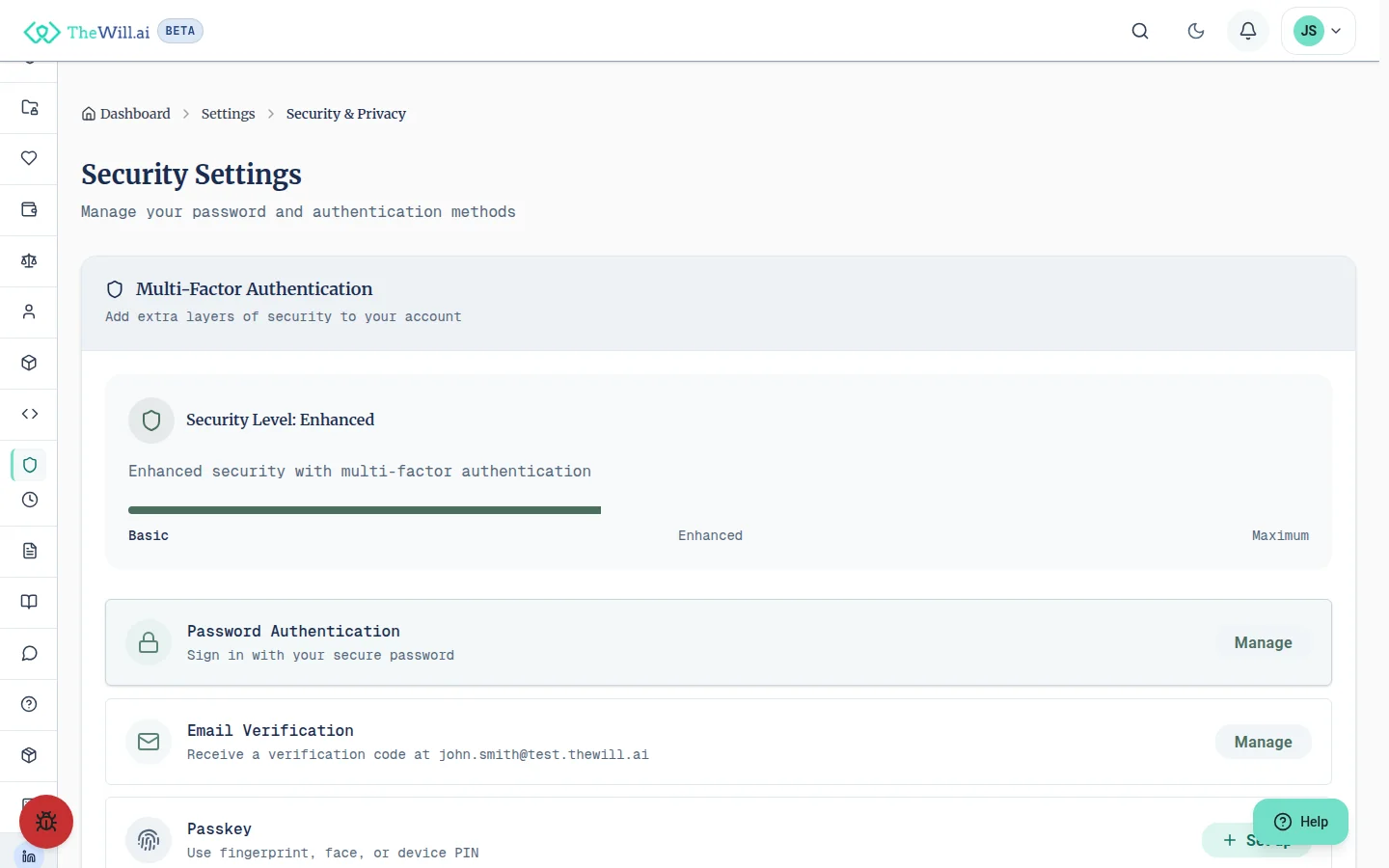
Two-Factor Authentication Methods
SMS Authentication
Receive a one-time code via text message to your registered phone number. Quick and convenient for most users.
Set up SMS →Authenticator App
Use any authenticator app to generate time-based codes. Works offline and is more secure than SMS.
Set up Authenticator →Passkey
Use biometric authentication or a hardware security key for the highest level of security and convenience. Passkeys work on TheWILL.ai only; on our other sites, sign in with your password. How one account works across our sites
Set up Passkey →Why Use Two-Factor Authentication?
Two-factor authentication (2FA) adds an extra layer of security to your account by requiring two different forms of identification before granting access.
- Protects against password theft and phishing attacks
- Prevents unauthorised access even if your password is compromised
- Secures your sensitive will and asset information
- Required for editing sensitive profile information
- Provides peace of mind for you and your beneficiaries
Password Security Best Practices
A strong password is your first line of defence. Follow these guidelines to create and maintain a secure password:
- Use at least 12 characters with a mix of letters, numbers, and symbols
- Avoid using personal information or common words
- Use a unique password for your Orchard72 account
- Consider using a password manager
- Change your password regularly, especially after security incidents
Account Activity Monitoring
Stay informed about access to your account by regularly reviewing your login activity. We track all login attempts and successful sessions for your security.
- View recent login locations and devices
- Receive alerts for suspicious activity
- Terminate active sessions from unknown devices
- Review failed login attempts
Rate Limiting & Account Protection
We use rate limiting to protect your account from automated attacks and ensure fair access for all users. If you see a "Too many attempts" message, here's what's happening:
- After repeated failed sign-in attempts, that account is temporarily locked
- A lockout clears by itself after a short wait. There is nothing you need to do
- Separately, sign-in, sign-up and verification-code requests are capped per network connection, so rapid repeats are refused for a short period
- A sign-in lockout applies to the account itself, so it stays in place on every device and browser until it clears
What to do when rate limited:
- Wait for the time given in the message before trying again
- Double-check you're using the correct email address
- Check your spam folder for verification emails
- Ensure you're using the correct password
- Contact us if you believe this is an error
Why we use rate limiting:
- Protects accounts from automated password guessing attacks
- Prevents credential stuffing and brute force attempts
- Reduces server load and ensures system stability
- Maintains fair access for legitimate users
Security Tips & Reminders
Important Security Notice
- Always log out when using shared or public computers
- Keep your contact information up to date for security notifications
- Enable all available security features for maximum protection
- Report any suspicious activity immediately
- Store backup codes in a secure location
- Generate a recovery key and store it in a password manager or safe
- If you receive a password reset email you did not request, cancel it immediately
Account Recovery
Recovery Key
A recovery key is your last resort for regaining access to your account if you lose both your email and all MFA methods. Unlike backup codes (which bypass MFA only), a recovery key can recover your entire account.
- Generate a recovery key in Settings > Security
- Store it securely: a password manager, a safe, or a printed copy
- Never store your recovery key in your email
- You can regenerate your key at any time (the old key is invalidated)
Report a Compromised Account
If you suspect someone has gained unauthorised access to your account, you can report it to protect the account immediately. How fully the account is frozen depends on whether you are signed in when you report.
- You can report a compromised account even without being signed in
- Not signed in: every change to the account is paused straight away, except a few protective actions (removing a device and signing out of your other devices)
- Signed in: the account is frozen fully and immediately (all sessions end)
- Not signed in: we email you a link, and opening it fully freezes the account and ends all sessions
- The pause lifts on its own within 48 hours, or straight away when you reset your password from the emailed link or complete account recovery
- While paused you can still sign in, view your information, remove devices and sign out of your other devices; we email you when it lifts
- Our security team will follow up with next steps
Can’t find what you’re looking for?
Our support team is here to help. Contact us and we’ll get back to you as soon as possible.
Contact Support