

Managing Clients
How to add, manage and hand over clients as a legal professional.
Last reviewed
Client Management
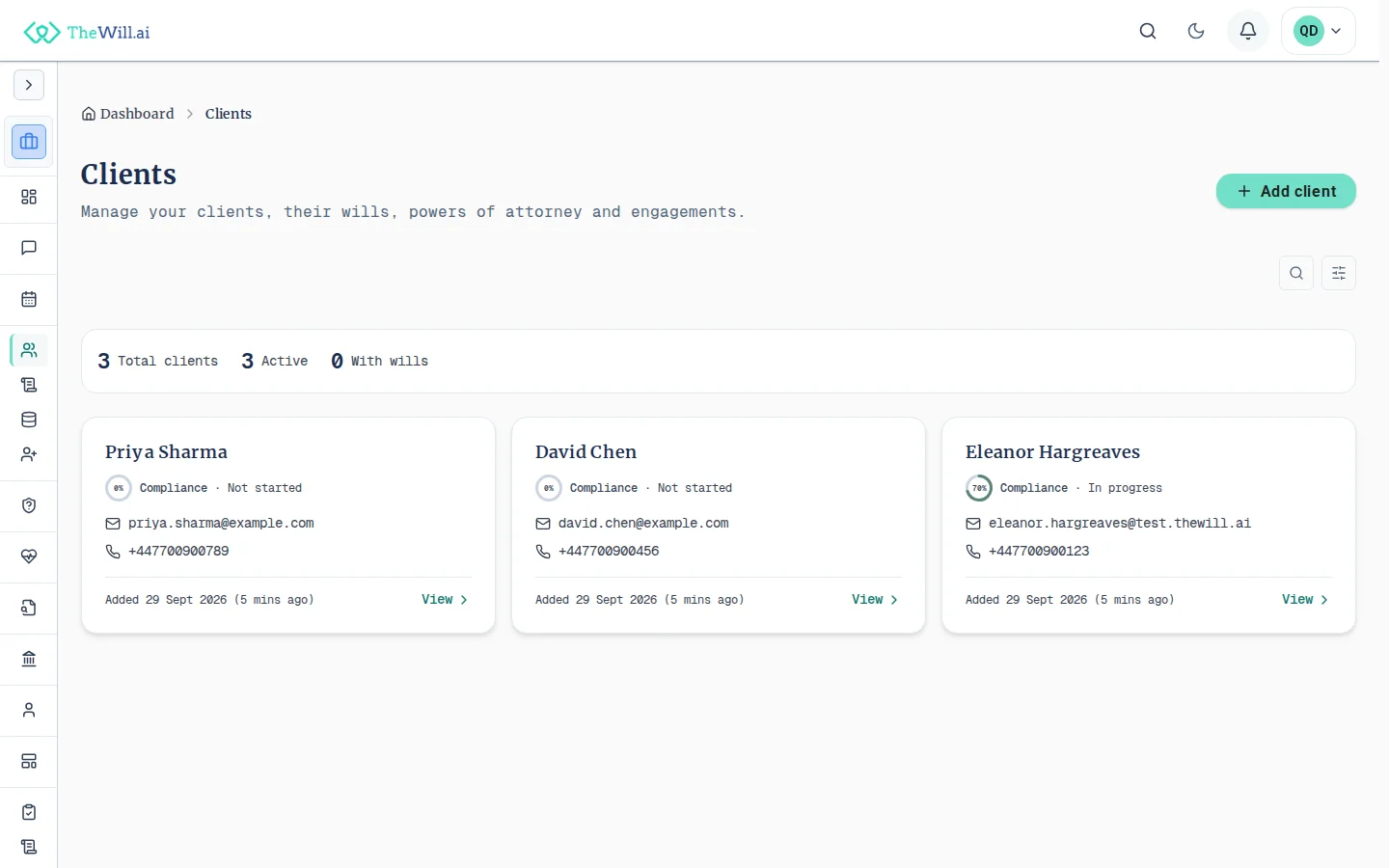

Adding a Client
Add clients to your account so you can create and manage wills on their behalf.
- Open Clients in the sidebar menu and choose All Clients
- Click Add client on the clients list, or + Add New Client in the sidebar
- Enter the client’s first and last name. These are the only required details
- Optionally add a title, middle name, date of birth, email address, phone number, postal address, client reference and notes
- Click Add client to create the client record
Finding and Viewing Clients
Your clients list shows all clients you’ve added. Use the search bar to find a specific client by name, email address or client reference. Click on any client to view their full details.
Editing Approached Clients
When a client reaches you through the platform, for example through an online will enquiry, a direct approach or a jurisdiction referral, their personal details come from their own account. To protect data integrity, you cannot edit their name, contact information or address. You can still update your own notes and client reference for internal tracking. Look for the pencil icon on the Additional Information section of the client detail page.
For clients you add manually, all fields remain fully editable.
Creating Wills for Clients
Once a client has been added, you can create and manage wills on their behalf. Open the client’s detail page and use the plus button in the header, labelled “Create will for this client”, to start a new will. The button only appears when the client is eligible for a new will.
Wills you have already started for a client appear on the Client Wills page in the sidebar, split into pending and completed tabs.
More Work for a Client
A client record covers more than wills. From the More actions menu on the client’s detail page you can prepare a power of attorney, import a will they already hold, or send them an invitation to import it themselves. The Engagement section holds the engagement letter and matter tasks, and further sections cover identity checks, compliance notes, appointments and invoices. An action only appears when it is available for that client.
Handing a Client to a Colleague
Each client in a firm has one managing professional at a time. Access to the client’s records, including their health and mental capacity records, follows that professional. When a client needs to move to someone else in your firm, for example because of workload or a change of specialism, you can hand them to a colleague.
- Open the client’s detail page and choose Hand over to a colleague from the more actions menu
- Choose the colleague who will take over, and optionally add a reason
- Check the summary of what moves to your colleague, what stays with you and which shared documents are re-pointed
- Confirm the hand-over. Your colleague becomes the managing professional straight away
Every hand-over is logged with who made it, who the client moved from, who they moved to and when. The log cannot be edited, and your firm’s owner and administrators can see it.
Frequently Asked Questions
Who can hand over a client?
The client’s managing professional, and your firm’s owner or an administrator. A colleague can only receive a client if they belong to the same firm and their account is active. Clients of a sole practitioner outside a firm cannot be handed over this way.
What moves to my colleague?
The client record and their matter, open engagement letters, open tasks, draft invoices, open service offers, work in progress such as wills and powers of attorney being prepared, matter correspondence and conversations, and the firm documents you own for this client. Documents the client shared for the matter are re-pointed to your colleague, and the client is told by email.
What stays with me?
Anything that records something you personally did or agreed to: appointments in your diary, time entries, issued invoices, signed engagement letters, reviews assigned to you, and documents the client shared with you by name rather than for the matter. Records you wrote, such as assessments and notes, keep you as their author, but you no longer have access to them.
Can I hand a client back?
Yes. Once the client has moved, your colleague (or your firm’s owner or an administrator) can hand them back to you in the same way. Each hand-over is logged separately, so the full history stays visible.
Can’t find what you’re looking for?
Our support team is here to help. Contact us and we’ll get back to you as soon as possible.
Contact Support